





1
Choose a Useful Clip
Pick a section where the subject is visible against its surroundings. A free video background remover or video bg remover test is most informative when it includes movement, texture, and changing light.
Remove a video background online with AI, keep the subject clear, and export a polished clip without a complicated editing workflow.















Explore the toolkit
Jump straight into a focused workspace for removing or replacing backgrounds and improving video quality.
Video Background Remover helps people keep the action while changing the setting: from a product clip and a lesson to a social post, presentation, or campaign variation.
Give Reused Clips a Fresh Setting


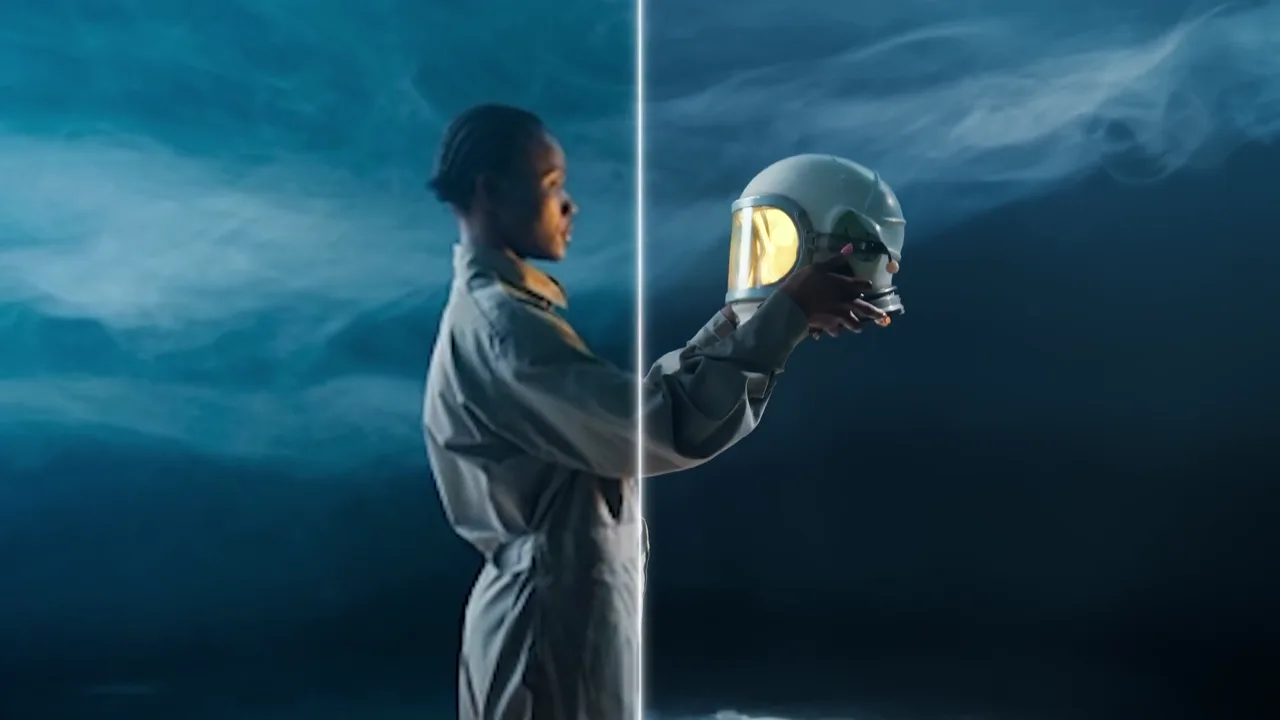
Creators use a video background remover when a strong take is ready for a new audience but the original location no longer fits. Use it to remove video background distractions, then place the subject in a cleaner scene that supports the next post, ad, or reel.
Keep the Product, Change the Scene

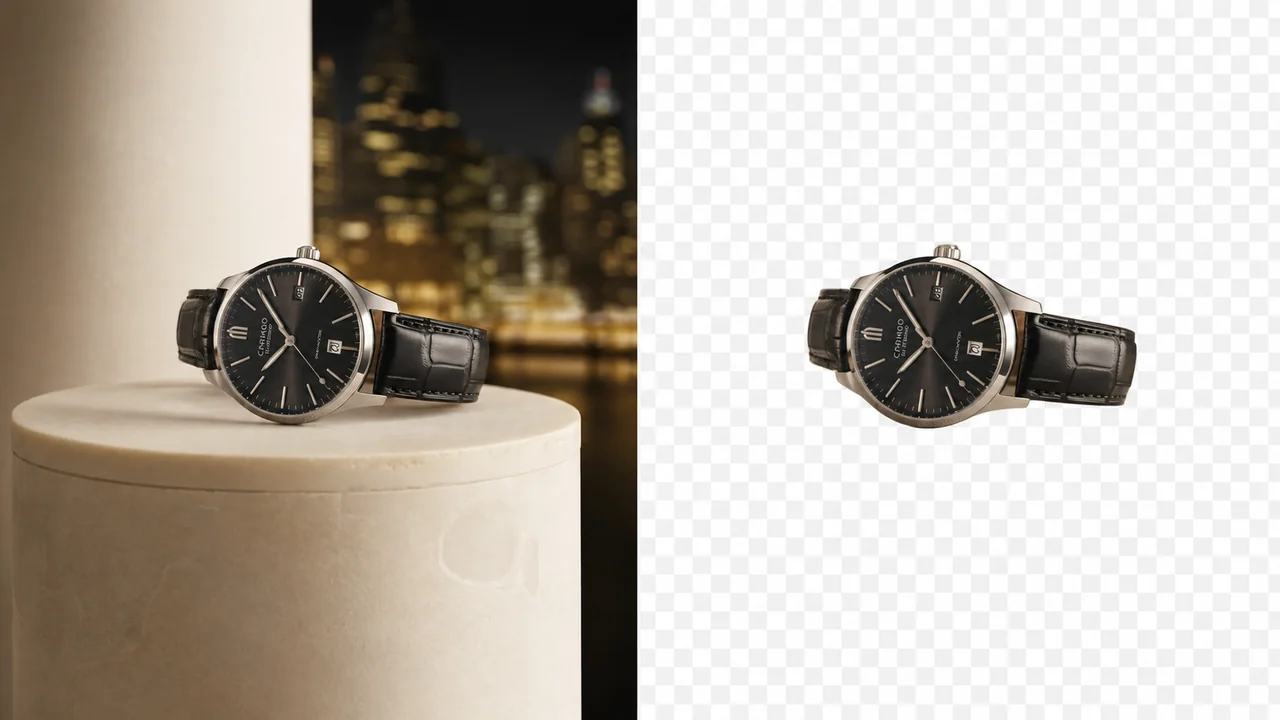
Product teams remove background from video when a useful demonstration needs a brighter, simpler, or more consistent setting. A background remover video free preview helps check labels, hands, reflective surfaces, and small details before the asset reaches a store page.
Make the Speaker Easier to Follow


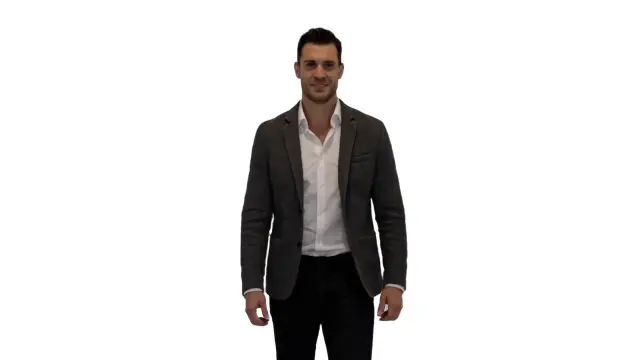
Educators and presenters use Video Background Remover when a room competes with a lesson, screen recording, or demonstration. Background remove video processing can help place the speaker beside supporting visuals while preserving the natural movement that keeps an explanation clear.
Put Every Move in a Clean Frame
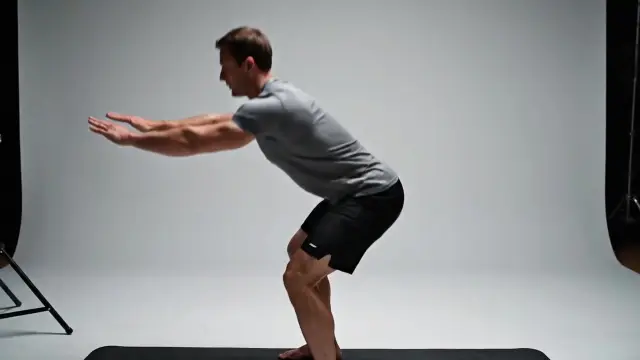
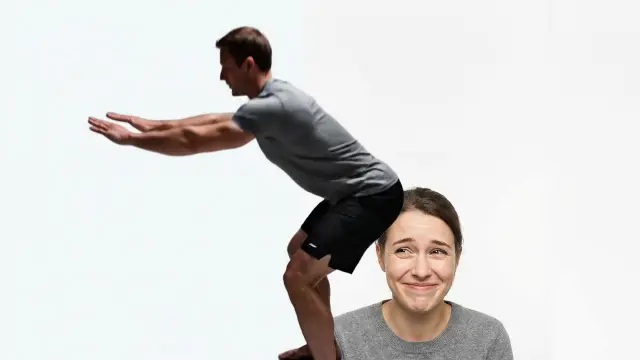
Fitness creators and personal brands use a video background remover when the motion is strong but the room is not the story. Compare the original movement with a replacement setting before publishing a workout, coaching clip, or profile video.
Video Background Remover gives you a focused way to separate a subject from a scene, review the moving result, and prepare footage for the next step in your creative workflow.
A video background remover preserves the composition that made a shot useful. Instead of trimming away a room, street, or set, keep the person or product in view and choose a background that serves the story.
Remove background from video with a real playback check, not a single flattering still. Watch hair, sleeves, wheels, and fast gestures so you can see how the selection behaves as lighting and camera angles change.
A free video background remover preview lets you test a demanding section before planning a larger edit. Use the video bg remover check at the size viewers will use, whether that is a phone, product page, or presentation screen.
Background remove video workflows make it easier to reuse a good take across campaigns. Place the same subject against a seasonal color, a clean studio look, or a branded scene while maintaining a consistent visual identity.
A video background remover is quick for existing footage; green screen works best when filming is planned; manual masks suit detailed retouching. Choose the method that matches your source, deadline, and required control.
Creators, sellers, educators, agencies, and internal teams remove video background distractions when a subject deserves more attention than the location. Use remove bg from video processing when the original frame should remain intact, then review the whole clip before export so the new setting feels intentional.
Use Video Background Remover in three straightforward steps: select a clip, preview the subject separation, and review motion before you use the result.
Pick a section where the subject is visible against its surroundings. A free video background remover or video bg remover test is most informative when it includes movement, texture, and changing light.
Let the workflow isolate the subject, then use it to remove video background distractions before deciding whether the original frame, a replacement scene, or a planned green screen approach fits the project.
Review the result at delivery size. When you remove bg from video, Video Background Remover is most useful when the person, product, or object stays convincing from the first frame to the last.
Five practical reasons people test the subject, edges, and new scene before a clip reaches an audience.
“Video Background Remover helps me put family interviews into a calmer viewing context without losing the gestures and expressions that make the recording meaningful.”

Isabelle Laurent
Archive Producer
“I use a free video background remover check before a campaign clip goes live. This video bg remover review gives me a quick way to inspect the subject at the phone-sized scale my audience actually sees.”

Kwame Asante
Social Video Strategist
“For product demonstrations, a free background-removal preview is faster than rebuilding every shot. My team can verify labels, reflections, and the outline around the product first.”

Natalie Kowalski
Product Content Lead
“Background remove video processing helps me keep the presenter beside the lesson visuals. I review the full explanation so the edit stays quiet and the instruction stays clear.”

Amara Osei
Learning Experience Designer
Start with a short preview, then choose a plan for longer edits and recurring video background removal work.
For solo creators enhancing short videos
$117.60 billed annually
9,600 Credits
Get StartedPopular
For teams improving frequent video assets
$239.40 billed annually
57,600 Credits
Get StartedFor studios and high-volume enhancement workflows
$1,199.40 billed annually
360,000 Credits
Get StartedQuestions about your plan? Reach us atsupport@videobackgroundremover.net
Clear answers about removing a background from video, reviewing edges, and choosing the right workflow.
A video background remover separates the person, product, or object you want to keep from its surroundings. People searching for a video bg remover often need a quick way to preview that separation before they download a clip for a new scene, transparent workflow, or cleaner composition.
Yes. A free preview is useful for testing difficult hair, hands, fabric, glass, or moving edges. Start with the busiest few seconds, watch the result at normal speed, and decide whether the cutout suits your intended delivery format.
Creators use a background remover video free workflow for shorts and reels; online sellers use it for product clips; teachers use it for lessons; and small teams use it for presentations. Each group can keep the subject visible while replacing a distracting setting.
A video background remover is fastest when you already have footage and no green screen. Green screen can give reliable separation when it was planned during filming. Manual masking offers fine control for difficult shots, but it takes more time and editing skill.
Cropping may cut off hands, products, or important motion. When you remove background from video, the original framing can stay intact while the setting changes. If you need to remove bg from video without losing the composition, review the outline around the subject whenever the camera moves or the lighting shifts.
Background remove video processing analyzes frames across the clip so the subject can remain distinct as it moves. A video bg remover can be useful for this first review. For the cleanest result, use a clear source, avoid extreme motion blur where possible, and inspect edges in the moments with the fastest movement.
Yes. Remove video background processing can make a product demo easier to place on a consistent campaign color, store page, or presentation slide. Check reflective packaging, thin handles, and transparent materials carefully before publishing the final version.
A background remover video free test is a practical way to check a short clip before a social export. Test the part with quick gestures or fine hair, then review the output on a phone-sized player because compression can make edge issues easier to notice.
Use a free video background remover for a fast browser-based preview and a desktop editor when you need keyframes, color grading, audio, or complex compositing. The two workflows complement each other: isolate the subject first, then finish the edit where you work best.
After you remove background from video, watch the entire sequence instead of judging one still frame. If you remove bg from video for a new setting, look at hairlines, fingers, wheels, shadows, reflections, and motion blur. A useful result keeps attention on the message rather than on the edit.
Yes. Background remove video workflows help educators place a presenter beside slides, demonstrations, or screen recordings without a cluttered room behind them. Teams that remove bg from video should keep text readable and make sure the new background supports the lesson rather than competing with it.
Choose a background remover video free test when a clip has a clearly defined subject but an unsuitable location, old backdrop, or inconsistent set. A video bg remover preview is especially useful when you need to remove video background clutter before producing variations for social posts, product pages, training, and client review.
Try Video Background Remover on a short clip, review the subject in motion, then continue when the result fits your project.