








AI Image Background Remover Online
Learn how AI image background removal creates clean photo cutouts, preserves subject edges, and prepares transparent assets for ecommerce and design.
Background
Practical guide
Plan Cleaner Photo Cutouts With an AI Image Background Remover
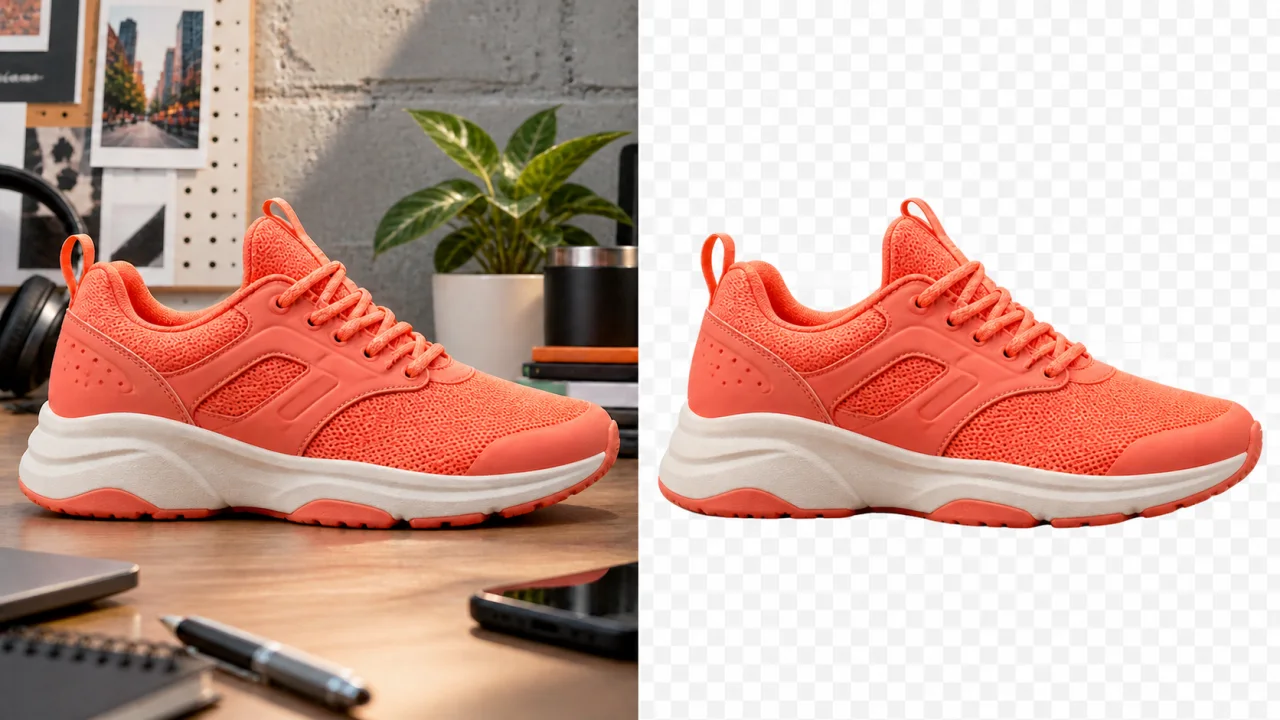
An AI Image Background Remover separates a foreground subject from the surrounding scene so the cutout can be reused in product listings, profile graphics, presentations, and design layouts. Good results depend on a clear source image, careful edge review, and an output format that matches the next step in the workflow.
Step-by-step workflow
- Start an AI Image Background Remover workflow with the highest-resolution version of the photo available, especially when hair, fabric, glass, or fine product details matter.
- Review the subject boundary at normal size and at a closer zoom, checking hair, fingers, shadows, reflections, and narrow gaps inside the subject.
- Compare the cutout on light, dark, and contrasting backgrounds so pale halos, missing edges, and leftover background pixels are easier to spot.
- Choose a transparent or composed output that suits the destination, then inspect the exported asset once more before publishing it.
Formats and limits
Background removal tools commonly work with familiar photo formats such as JPEG, PNG, and WebP. A transparent PNG is widely used when the cutout needs to sit over a new color, photograph, presentation slide, ecommerce layout, or design canvas.
Low resolution, heavy compression, motion blur, low contrast, transparent objects, soft shadows, and overlapping details can make subject separation less precise. Background removal can create a useful first cutout, but important commercial assets still benefit from a full edge review.
Privacy and permissions
Only process images you own or are authorized to edit. Avoid uploading confidential portraits, identity documents, unreleased products, or rights-restricted photography without permission, and review the Privacy Policy before working with sensitive material.
Real-world review example
Example: an online seller can use an AI Image Background Remover to isolate a product from a busy supplier photo, inspect the outline around reflective packaging, and prepare a transparent asset for a consistent catalog layout.
Frequently asked questions
- What does an AI Image Background Remover do?
- It analyzes a photo to distinguish the main subject from the surrounding background, then creates a cutout that can be placed on a transparent canvas or combined with a different visual setting.
- Which details should I inspect after background removal?
- Check hair, fur, fingers, translucent objects, reflections, thin straps, soft shadows, and areas where the subject color is close to the original background. These regions most often reveal rough edges or missing detail.
- When is image background removal useful?
- Common uses include ecommerce listings, headshots, social graphics, marketplace thumbnails, presentation assets, print layouts, and reusable product cutouts for campaigns with several background designs.
