

1
1. Upload Your Dola Video
Choose a Dola export you are allowed to edit. A higher-quality source gives the repair more detail to work with than a compressed reupload.
Upload a Dola clip, let the automatic preview find the corner mark, then compare the cleaned motion before you download.
Explore the toolkit
Jump straight into a focused workspace for removing or replacing backgrounds and improving video quality.
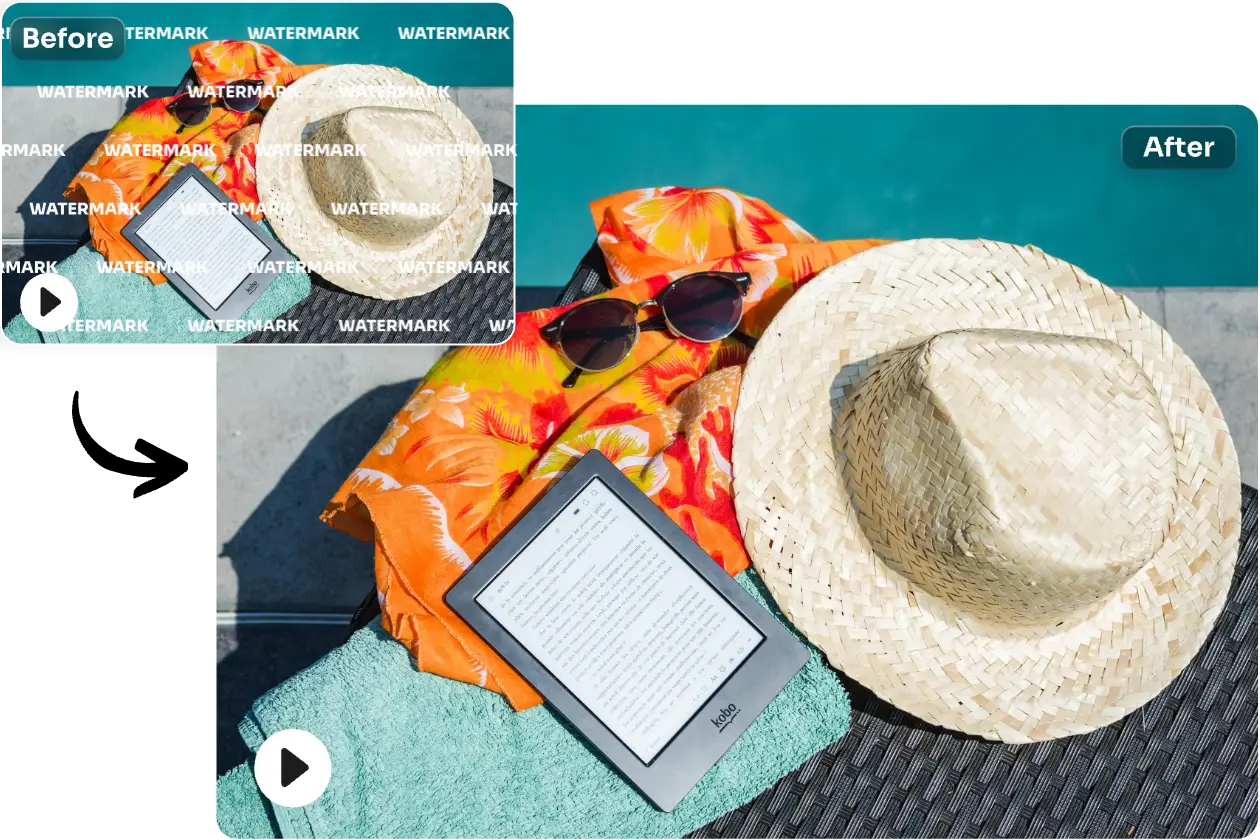
Dola exports often carry a small logo, an AI label, or a text badge near the edge of the frame. A Dola AI watermark remover works best when you know which of these marks you are cleaning.
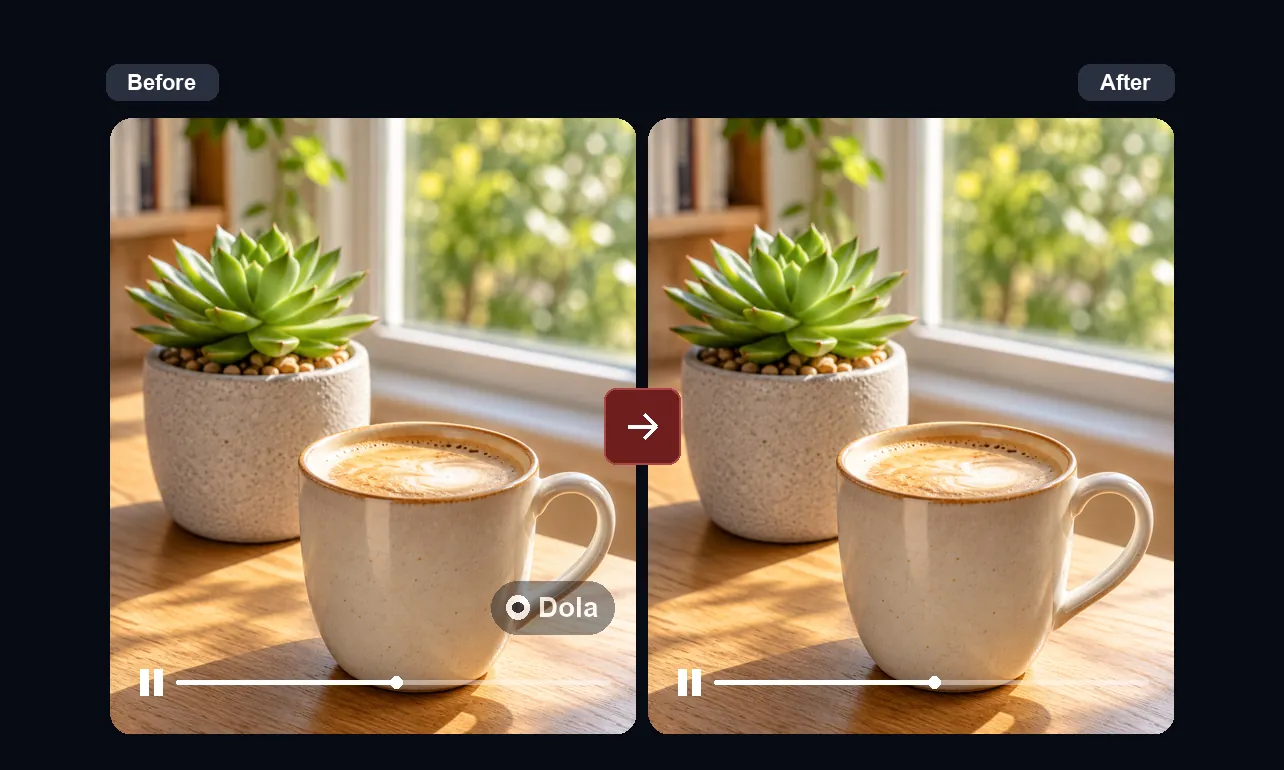
Short vertical Dola videos tend to place the brand mark in a corner where cropping would cut into a face, a product, or a caption you want to keep. The Dola AI watermark remover rebuilds only the marked area, so the original framing stays intact. Play the clip at normal speed afterwards, because a repair that looks clean on a still frame can shimmer once the camera moves.
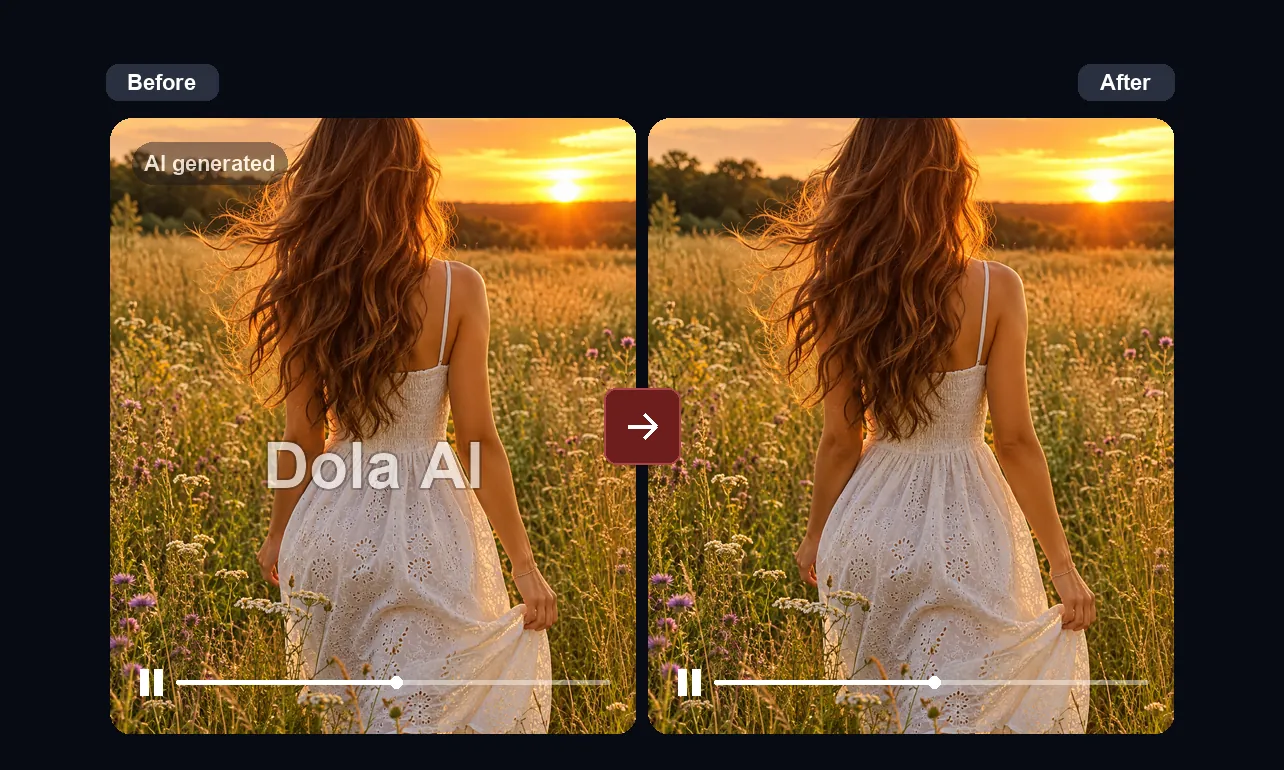
An AI label or text badge can sit over hair, foliage, water, or fabric, which is harder to rebuild than a flat wall. Use the Dola AI watermark remover on the section with the most texture first. If the video has fast cuts, check a frame on each side of every cut so the repaired patch does not drift into the next shot.
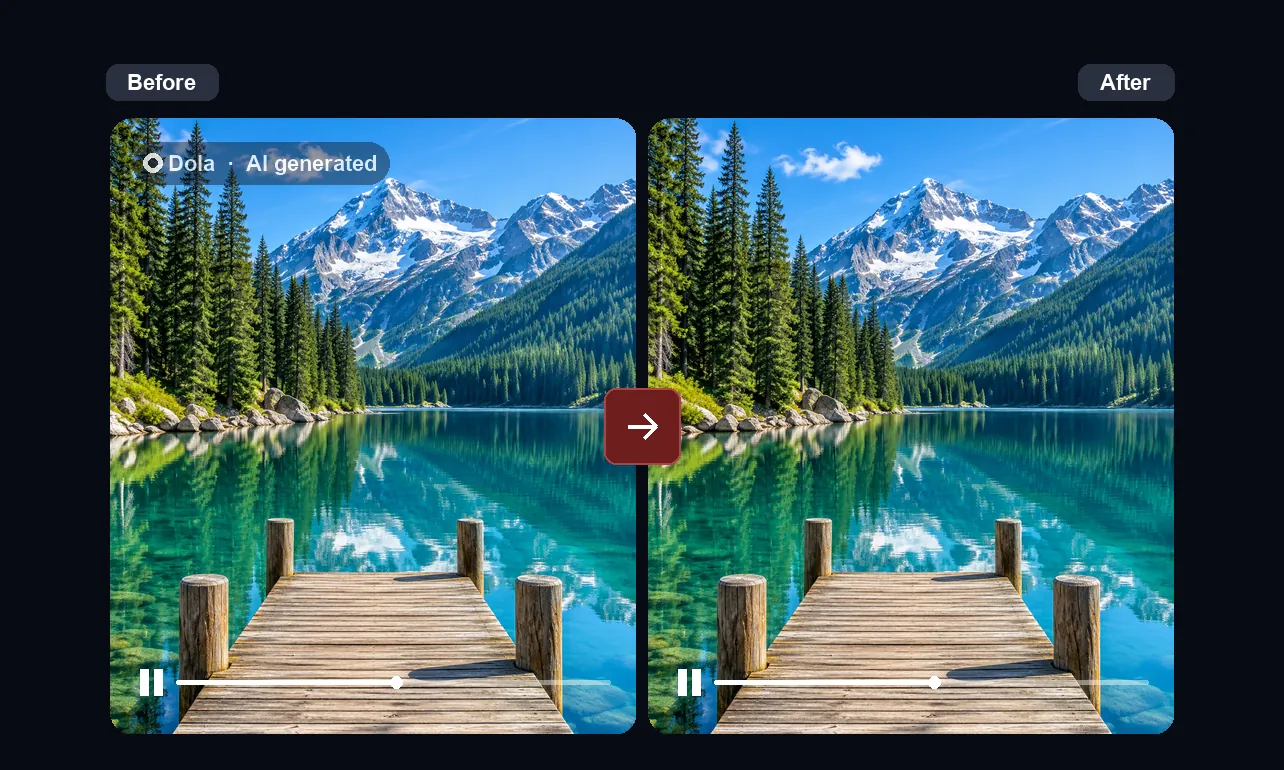
Many creators move Dola drafts into a longer edit, a storyboard, or a presentation. Cleaning the Dola watermark first keeps titles and transitions from overlapping an old badge. Keep the untouched export beside the cleaned copy, so you can return to the source if a later edit needs a different crop or a second pass.
Each feature focuses on a practical step in cleaning Dola videos: finding the mark, rebuilding the area, and checking the result before export.
The automatic preview looks for the Dola logo or AI label in common corner positions, so most clips need no manual selection before the first result.
The repaired area follows nearby movement, which helps Dola footage with pans, zooms, and walking subjects avoid a static patch that floats over the scene.
Pause the cleaned video on any frame and compare it with the source, especially around faces, hands, and edges where a repair is easiest to notice.
The export keeps the dimensions of your upload instead of cropping the corner away, so vertical and horizontal formats stay ready for publishing.
Open the Dola AI watermark remover, upload a clip, and watch the automatic preview without creating an account first.
Upload MP4, MOV, or WebM files exported from Dola, along with clips that were trimmed or re-encoded in another editor.
Four short steps take a Dola video from upload to a cleaned download.
Choose a Dola export you are allowed to edit. A higher-quality source gives the repair more detail to work with than a compressed reupload.
The workspace locates the Dola mark and renders a short preview, so you can judge the repair before processing the full clip.
Play the preview at normal speed, then pause on busy frames. Check the corner where the Dola watermark sat against the source.
When the preview looks right, process the full video and download it for your next edit or upload.
Answers about cleaning Dola videos, what to check in the result, and how to get the best repair.
A Dola AI watermark remover finds the logo, AI label, or text badge on a Dola video and rebuilds that area from the surrounding pixels. The rest of the frame is left as it was. The goal is a clean clip you can keep editing without cropping the corner or covering it with a sticker.
Upload the Dola clip to the workspace above. The automatic preview locates the Dola watermark and shows a repaired sample. If the sample looks right, process the whole video and download it. If not, try a cleaner source export before running the Dola AI watermark remover again.
Yes. You can open the page, upload a Dola video, and watch the automatic preview without signing up. Longer or higher-resolution Dola clips may use credits when you process the full video, and the workspace shows this before you start.
The export keeps the resolution of your upload, and only the marked area is rebuilt. Quality depends mostly on the source: a sharp Dola export repairs better than a clip that was screen-recorded or compressed several times. If you still have the project open, export again at the highest setting available rather than downloading a shared copy, because every extra round of compression removes fine detail that the repair would otherwise use to rebuild edges, gradients, and small textures.
Most Dola marks stay in a fixed corner, which is the easiest case. If a label shifts between shots, review frames on both sides of each cut. A Dola AI watermark remover handles a moving mark better when the background around it is simple.
Clips with a stable camera, a plain or softly blurred background behind the corner, and little compression give the cleanest repair. Dola videos where the mark crosses a face, fine text, or rapid motion need closer review before you download. Lighting matters too: an even, well-lit corner is easier to rebuild than one with flickering highlights, deep shadows, or heavy grain from a dark scene.
Usually not. The automatic preview targets the usual Dola watermark positions. Manual selection is kept out of the default flow so you can judge the automatic result first and only adjust when a clip has an unusual overlay.
This page is built for Dola video. For still frames or exported pictures, use an image tool from the list above, since a single image does not need the motion-aware repair the Dola AI watermark remover applies to clips.
MP4, MOV, and WebM uploads work, which covers the formats Dola exports and most editors produce. Very long Dola videos can be trimmed to the section you need first, which also makes the preview faster. Keeping each upload short and focused also helps you compare results quickly when you want to test more than one export of the same scene.
Use the Dola AI watermark remover on clips you created or have permission to edit, and follow the rules of any platform where you publish them. Some destinations ask you to disclose AI-generated content even after a visible label is gone.
The automatic preview usually appears within a short wait after upload. Processing the full video takes longer for higher resolutions and longer durations, and you can keep the page open while the result is prepared.
Play the cleaned video once at normal speed, then pause on frames with the most movement near the old mark. Compare those frames with the source, confirm nothing important disappeared, and keep the original Dola export in case you need another pass.