








AI background removal workspace

Free Bulk Background Remover Online

Upload a group of product photos, portraits, or creative assets and remove every background in one organized online workflow.

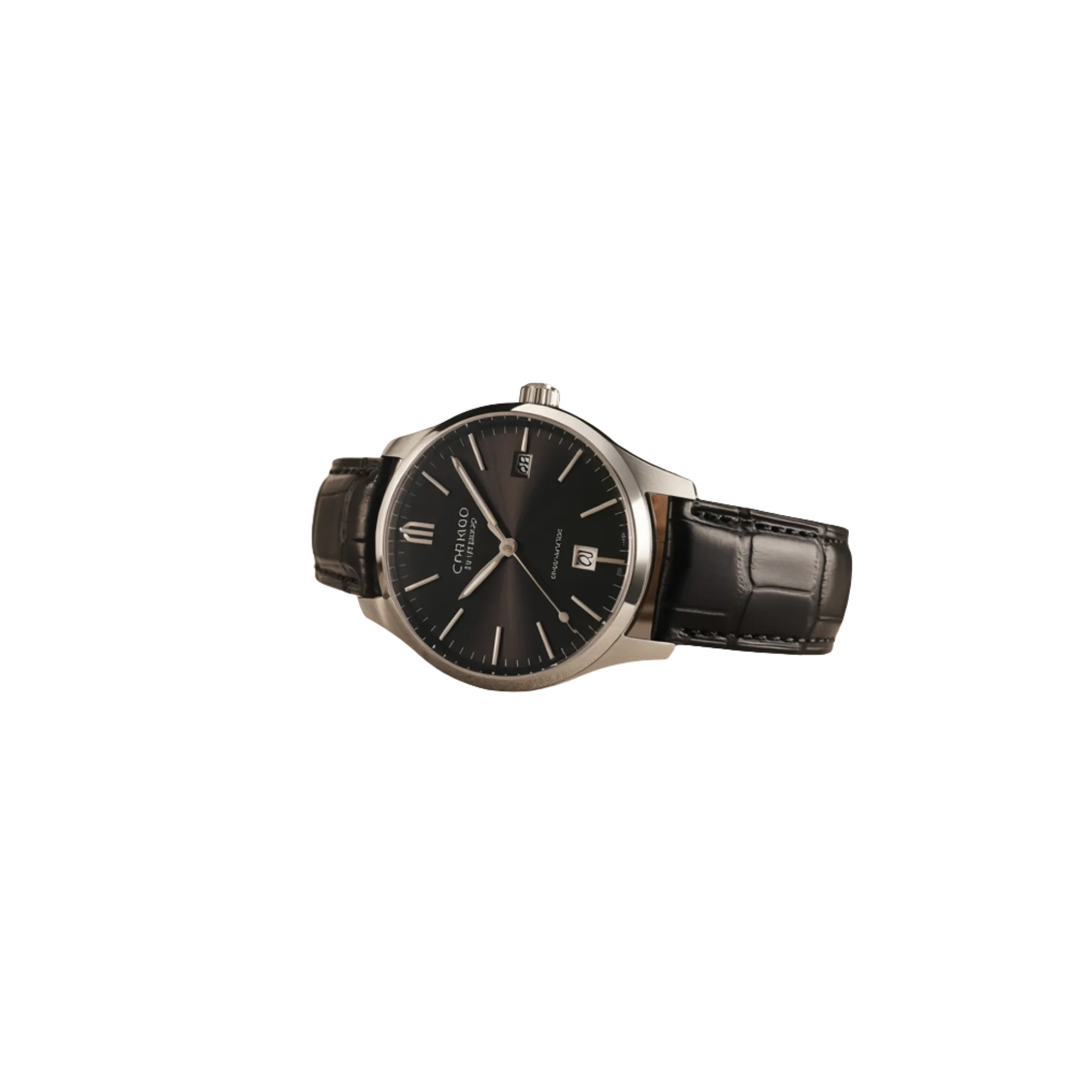
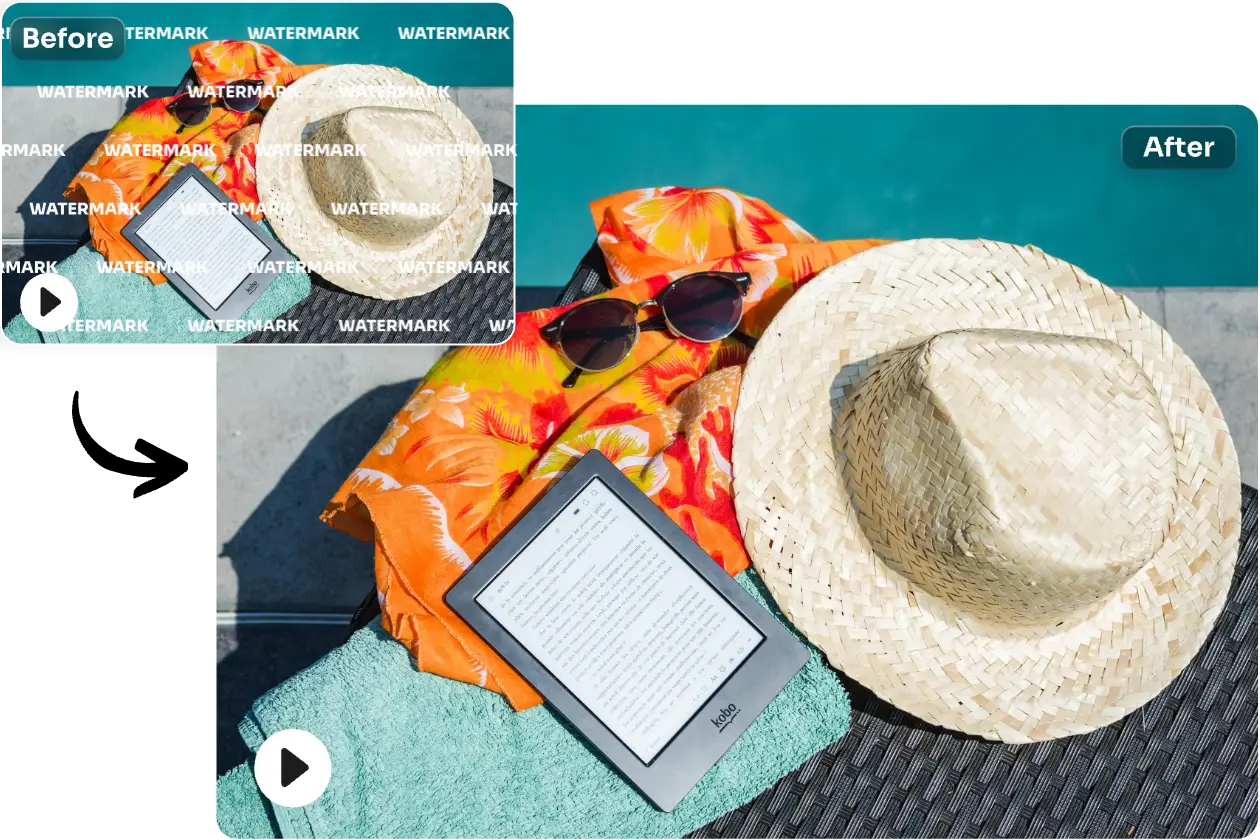
Example image - After
Example image - Before
Original
Background removed

Try the example or upload your own JPEG, PNG, or WebP image.

Free processing with no loginTransparent PNG outputPremium history and privacy
Processing mode

Anonymous free allowance

5 of 5 removals remaining

24H

Each successful free result counts once. The allowance resets 24 hours after your latest successful removal.

One Bulk Background Remover for Every Image Collection

Move an entire visual set through one focused background workflow. The bulk process keeps each remover task together, so product, portrait, and creative files are easier to review before download.

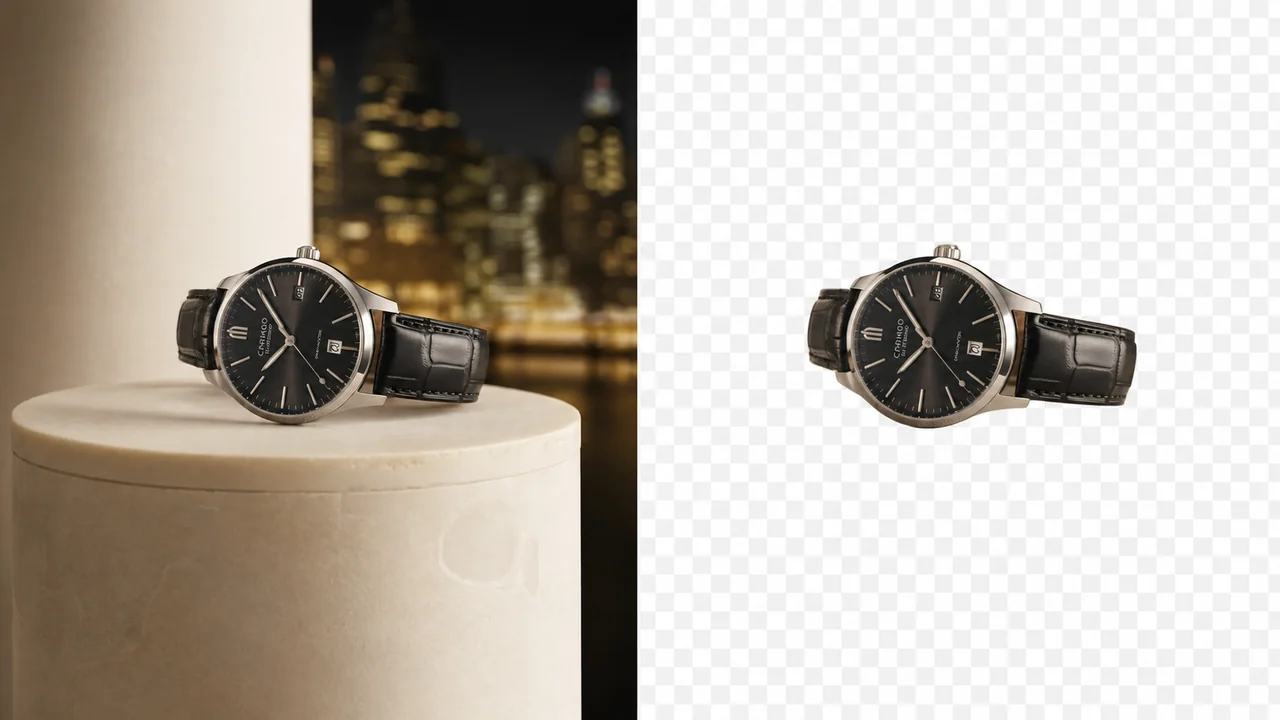
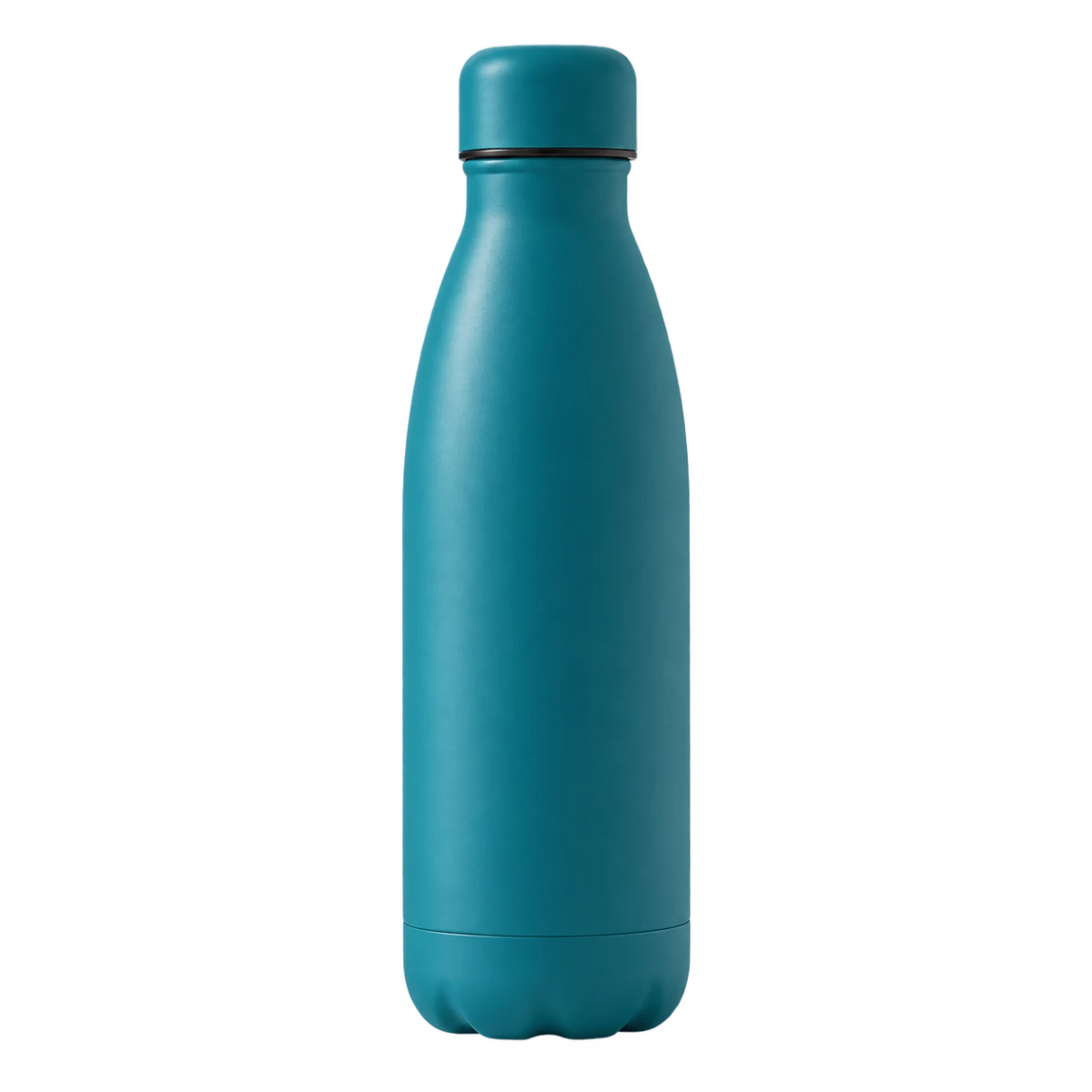
Build Consistent Product Cutouts in Bulk - After
Build Consistent Product Cutouts in Bulk - Before
Before
After
Ecommerce catalogs

Build Consistent Product Cutouts in Bulk

A growing store may need dozens of product images prepared for category pages, marketplace listings, and seasonal campaigns. Add the complete batch to the Bulk Background Remover, let automatic background detection separate every subject, and compare the resulting cutouts as one collection. Bulk processing helps keep bottle shapes, packaging edges, reflective materials, and contact details consistent. After the remover finishes, review difficult background areas across the whole product set and download transparent files that are ready for new catalog layouts.

  • Upload a complete product batch
  • Keep every background result organized
  • Download transparent catalog assets
Prepare a Unified Portrait Library - After
Prepare a Unified Portrait Library - Before
Before
After
Team portraits

Prepare a Unified Portrait Library

Team directories often combine portraits captured in different offices, lighting conditions, and background settings. A bulk portrait workflow brings those files together before they reach profile cards, speaker pages, or presentation templates. The Bulk Background Remover clears each original scene while preserving faces, clothing, shoulders, and detailed hair. Review the collection for a consistent background-free appearance, then use the grouped remover output to update a full team page without repeating the same manual edit for every person.

  • Process portrait collections in bulk
  • Retain natural hair and clothing edges
  • Create a consistent team library
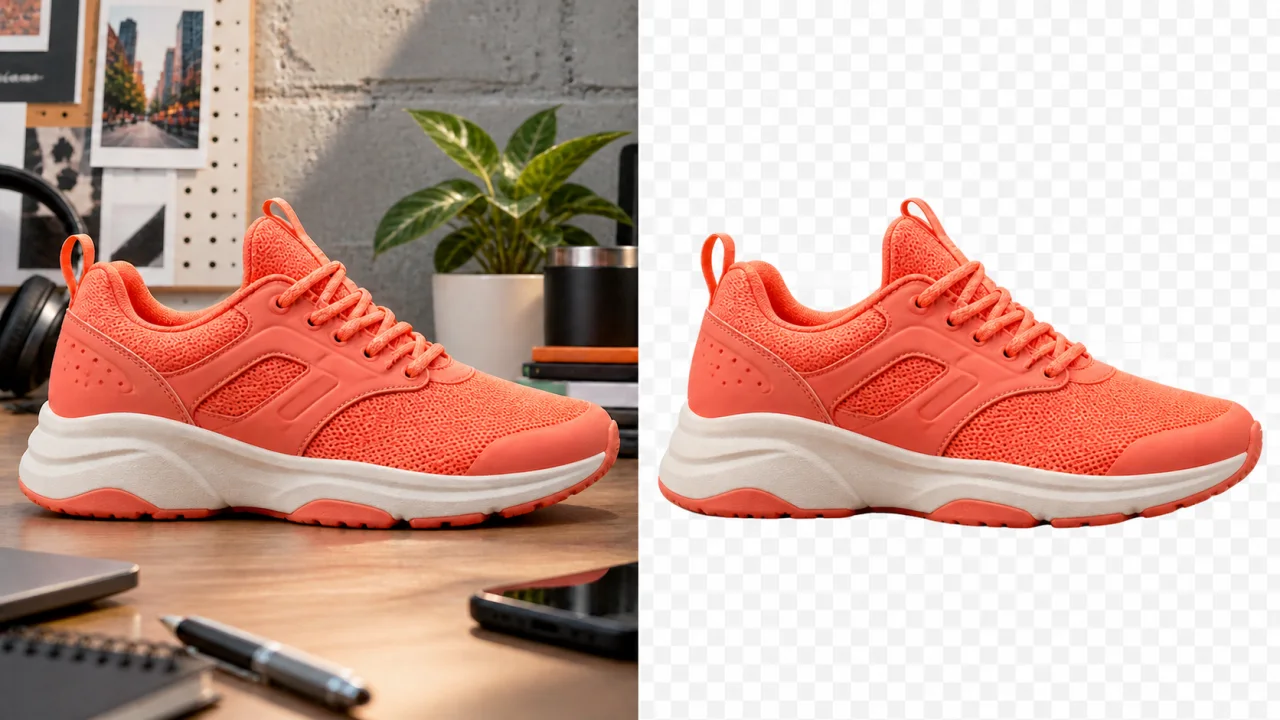
Turn Mixed Creative Photos into Reusable Assets - After
Turn Mixed Creative Photos into Reusable Assets - Before
Before
After
Creative asset libraries

Turn Mixed Creative Photos into Reusable Assets

Design teams collect objects, props, merchandise, and campaign photography from many sources. Use the Bulk Background Remover to place those mixed files into one bulk queue instead of opening separate editing documents. Automatic background removal prepares flexible cutouts while the shared review view makes unusual silhouettes and soft edges easier to compare. When the remover completes the group, download the transparent asset collection and place each item over a fresh background, color system, advertisement, or presentation without rebuilding its mask.

  • Combine mixed creative files in one batch
  • Review unusual object silhouettes
  • Reuse every transparent asset

Bulk Background Remover Features for Faster Production

Manage a complete image collection without turning background removal into a long sequence of isolated edits. This remover keeps bulk preparation, automatic separation, review, and delivery in one practical browser workflow.

Multiple Image Uploads

Select product shots, portraits, or creative photos together instead of adding every file through a separate page. The bulk uploader gathers the source collection in one place and prepares each background task for the same removal run. This grouped start is especially useful when a launch, directory, or campaign includes many related images and the remover must keep the production order clear.

Automatic Batch Processing

Start the Bulk Background Remover once and let the automated workflow analyze the foreground subject in every image. The batch continues across the uploaded collection, separating product shapes, people, and creative objects from each original background. Bulk automation reduces repeated setup while the remover keeps every output associated with its source file for a simpler review.

Consistent Edge Results

A connected review makes it easier to compare edges across an entire set. Check pale products, reflective surfaces, fine hair, fabric, narrow gaps, and curved objects against the same background colors. The bulk view helps identify an inconsistent cutout before delivery, while the remover preview lets the team verify that important subject details remain visible across the collection.

Transparent PNG Output

Export background-free images with transparency so every subject can move into a store template, profile layout, social graphic, or presentation. Transparent output keeps the bulk collection adaptable rather than locking each result to one color. After the remover completes processing, the files remain ready for future layouts, seasonal designs, and new background treatments.

Organized Bulk Download

Collect the finished background results and download the processed files together instead of saving assets one by one. A grouped delivery keeps names and related images easier to track when another designer, merchant, or content manager receives the collection. The Bulk Background Remover turns a long export checklist into a more direct handoff for production teams.

Free Access with No Login

Open the free workspace and begin a bulk background task without creating an account or stopping at a login screen. This quick access is useful for testing a new product set, checking portrait edges, or preparing urgent creative files. The remover keeps the first step simple while the page explains the available background workflow before processing begins.

Three-step batch workflow

How to Use the Bulk Background Remover

Prepare, process, and export a full image group through one background removal sequence. The bulk workflow keeps source files and remover results together from upload to final download.

1

1. Upload Multiple Images

Choose the product, portrait, or creative files that belong in the same batch. Use clear source images with enough resolution to show fine subject edges, then add the collection to the Bulk Background Remover. A thoughtful bulk group makes later review easier because related lighting, object types, and destination layouts can be evaluated together rather than mixed with unrelated work.

2

2. Remove Every Background

Start processing and allow the remover to identify the foreground in each uploaded image. Automatic separation clears the surrounding background while retaining the subject for transparent output. Keep the browser open while the bulk queue progresses, and use the completed previews to check hair, reflections, shadows, fabric, packaging, and interior spaces that can challenge any automatic background workflow.

3

3. Review and Download the Batch

Compare the original and processed images, paying special attention to files with low contrast or complex edges. Preview the cutouts over different background colors so leftover pixels and pale halos are easier to see. When the Bulk Background Remover results look consistent, download the transparent collection together and move the complete bulk set into the next design or publishing step.

Bulk Background Remover FAQs

Answers about batch uploads, background quality, transparent files, grouped downloads, and using the remover for product, portrait, and creative collections.

What is a Bulk Background Remover?

A Bulk Background Remover processes an image collection through one organized remover workflow. Upload the related batch, let the remover isolate every foreground subject, review each background-free result, and download the finished collection. This bulk approach suits catalogs, staff directories, content libraries, and campaigns that require repeated image preparation.

Can I upload multiple images at the same time?

Yes. Select multiple supported images for one bulk session and keep the collection together while the remover runs. Grouped files make background results easier to compare across products or portraits. They also preserve a predictable order and avoid reopening the remover for every asset in the batch.

Is the Bulk Background Remover free with no login?

Yes. Open the free Bulk Background Remover and prepare images without creating an account or signing in. No-login remover access makes bulk testing quicker on a real collection. Upload clear files, review the background quality across the batch, and confirm every remover result before downloading the finished assets.

Which image types work best for bulk removal?

Sharp products, portraits, and isolated creative objects usually give the clearest background separation. High-resolution files with visible boundaries also help the remover. A bulk collection may contain different subjects, although similar lighting makes comparison easier. Review the remover output closely when colors overlap or images contain blur, transparency, or heavy shadows.

Can I process ecommerce product photos in bulk?

Yes. The Bulk Background Remover prepares product collections that need consistent catalog cutouts. Add the related images, run the background remover process, and compare packaging, reflections, pale edges, and narrow parts across the bulk group. Transparent remover output can then enter marketplace templates, category grids, advertisements, or branded store designs.

Does bulk processing preserve hair and portrait details?

The remover analyzes every portrait while keeping the files in one bulk remover workflow. Fine curls, glasses, clothing, and shoulders create complex boundaries, so inspect each result over contrasting background colors. A grouped review helps reveal halos or clipped details before the transparent collection enters a team page or speaker layout.

What background will the downloaded images have?

Processed remover files use transparency instead of a permanent background color, so every result remains reusable in new layouts. An editor may show a checkerboard for empty pixels; that pattern is not part of the image. It marks where the Bulk Background Remover cleared the scene during the bulk process.

Can I download all processed images together?

Yes. When the bulk remover queue completes and each background result is reviewed, use grouped download to collect the processed assets. One delivery is easier to transfer or share. Confirm filenames and count the remover outputs so every source has a matching transparent file in the final batch.

How should I organize a large batch?

Create a separate bulk remover group for each category, portrait session, campaign, or creative library. Consistent dimensions and clear filenames simplify background review. Divide a very large collection into practical groups so the team can verify every remover result without losing the source order, destination, or delivery folder.

Why do some images need more review than others?

Automatic background separation depends on the boundary between subject and scene. Hair, glass, blur, smoke, reflections, and similar colors can be difficult. The bulk remover workflow saves setup time, but every remover result still deserves inspection. Comparing the batch together reveals edge differences that may be missed in isolation.

Can transparent bulk results be reused in new designs?

Yes. A transparent bulk remover collection can sit over new background colors, photographs, slides, marketplace templates, or advertisements. Keep the originals beside the processed set for comparison. Because remover output is not fixed to one scene, the same subjects can support many campaigns without repeating the complete process.

How do I check quality before downloading?

Zoom into fine edges and preview every cutout over contrasting background colors. Look for fringes, missing details, leftover pixels, and clipped shadows, then compare related images side by side. A careful bulk remover review confirms that the remover handled the collection consistently before the final files leave the batch.

Process Your Next Collection in Bulk

Open the Bulk Background Remover, upload the full image group, clear every background, and download reusable transparent results without repeating the same setup for each file.