







AI background removal workspace

Free GIF Background Remover Online

Prepare a GIF as MP4 or WebM, then use the free video workspace to remove its background with no login. Direct GIF upload and GIF export are not available yet.

Free short-clip processingPremium transparent outputCustom image backgrounds

Background

A GIF Background Remover Workflow for Moving Content

Convert the animation to a supported video first, then remove the scene around the moving subject and review every important moment before export.

Clean Up People and Characters in Short Loops

Clean Up People and Characters in Short Loops - BeforeClean Up People and Characters in Short Loops - After
BeforeAfter

Clean Up People and Characters in Short Loops

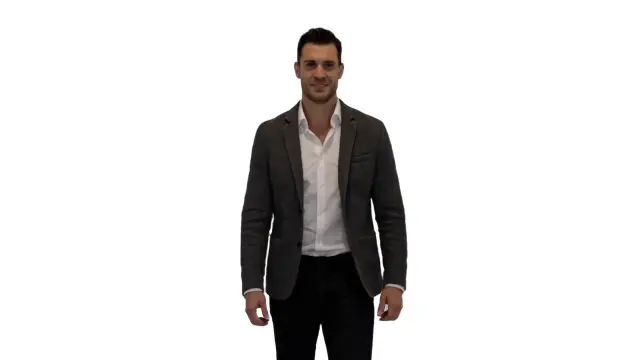
A reaction GIF often repeats quick gestures, hair movement, facial detail, and compression noise. Prepare the GIF as MP4 or WebM before upload, then remove the surrounding background while the loop plays. A useful GIF background remover review checks the start, middle, and loop point instead of judging one still frame. Remove background flashes around hands and hair, compare the moving outline on light and dark colors, and keep the original animation nearby. This converted-video workflow helps preserve timing while you decide whether the result is ready for a chat sticker, social reply, presentation, or later animation edit.

Separate Products for Reusable Motion Graphics

Separate Products for Reusable Motion Graphics - BeforeSeparate Products for Reusable Motion Graphics - After
BeforeAfter

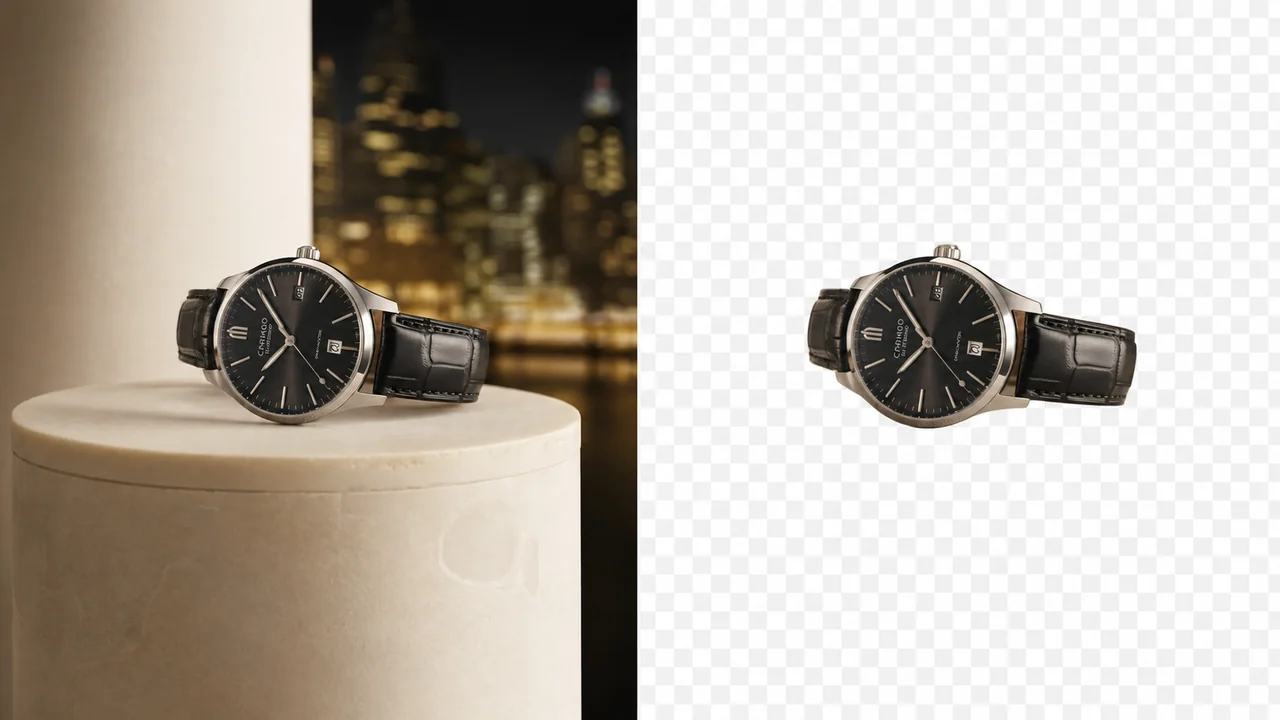
Separate Products for Reusable Motion Graphics

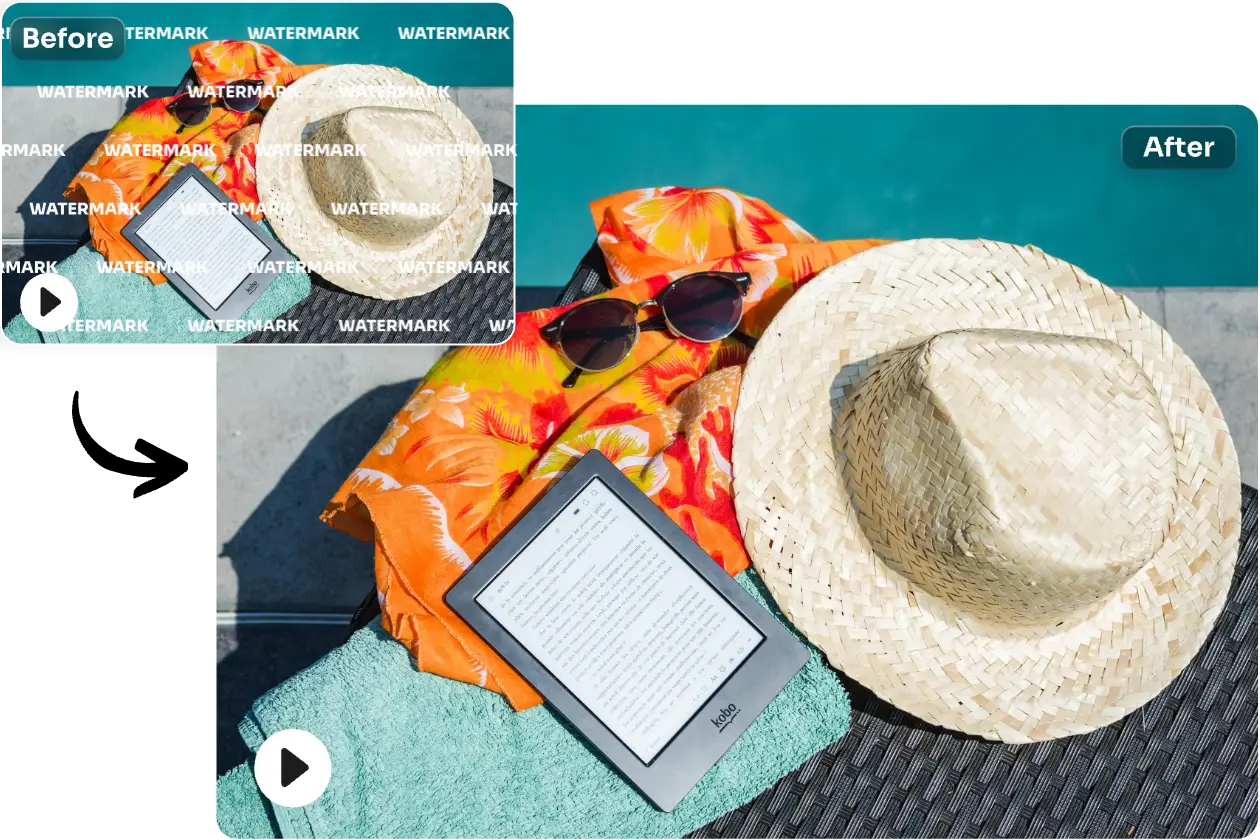
A product GIF can show rotation, reflections, hands, labels, and narrow edges across many frames. Convert the GIF without changing its aspect ratio or speed, upload the supported video, and remove the old background through the full motion. The remove background from GIF workflow is most reliable when the product contrasts with its surroundings and the source is not heavily compressed. Review reflections, contact shadows, transparent packaging, and the loop transition before placing the result over a campaign color, storefront layout, email graphic, or product page animation.

Prepare Animated Subjects for a New Scene

Prepare Animated Subjects for a New Scene - BeforePrepare Animated Subjects for a New Scene - After
BeforeAfter

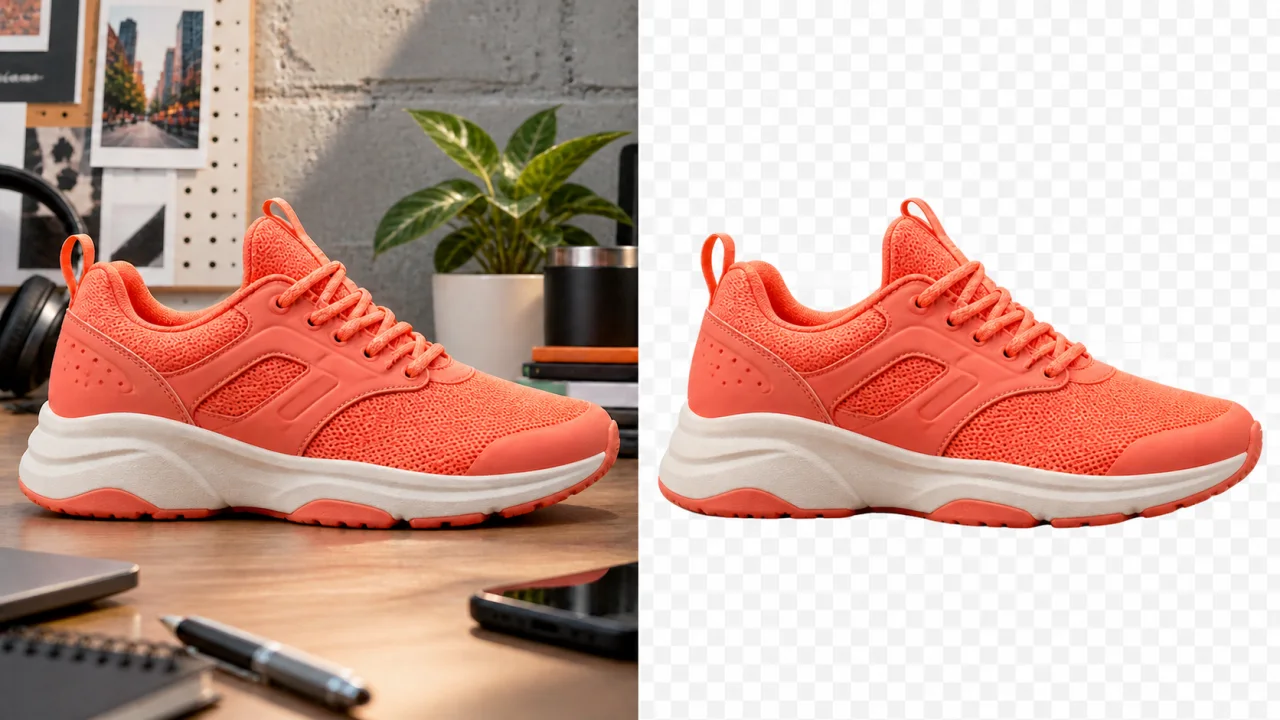
Prepare Animated Subjects for a New Scene

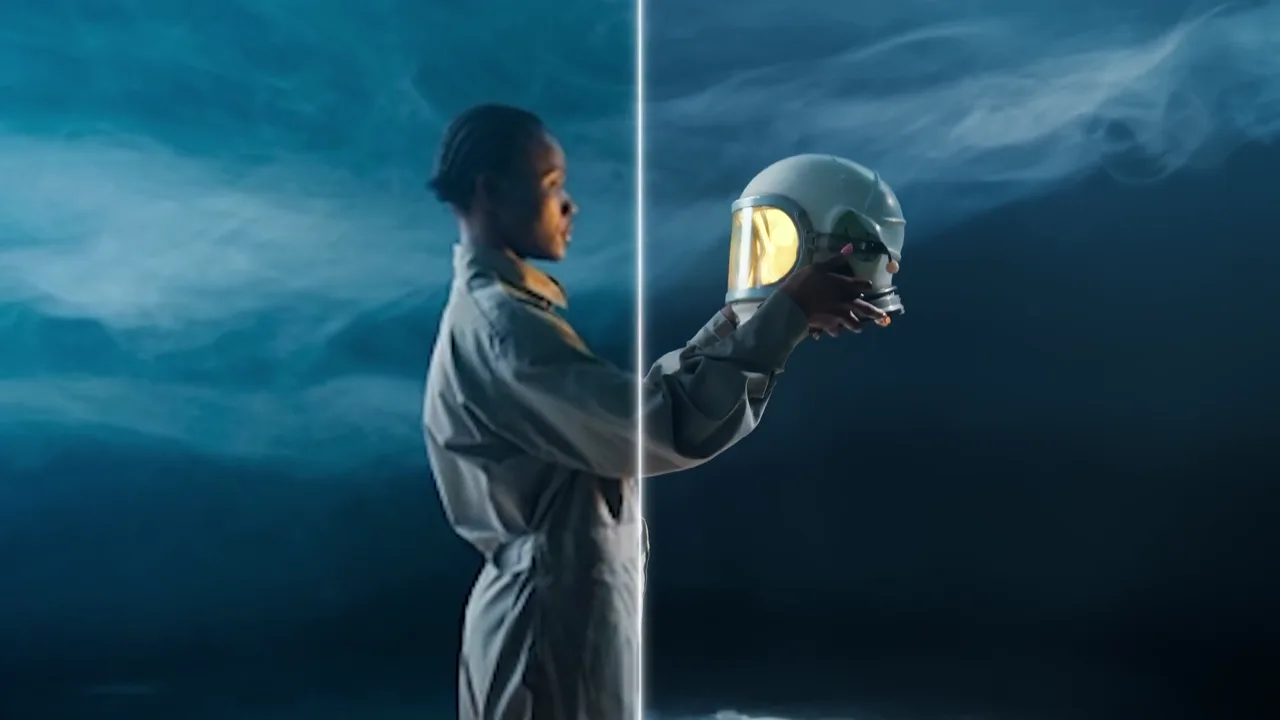
Use a GIF background remover workflow when an animated person, pet, object, or illustrated character needs to sit over a different visual. Convert the GIF to MP4 or WebM first, then remove the original scene and inspect the subject through motion. When you remove GIF background detail, watch fine outlines, interior gaps, motion blur, and soft shadows. Export the processed video for compositing, then use your preferred editor to set the delivery format, dimensions, loop behavior, and final background required by the destination.

What This GIF Background Remover Workflow Helps You Do

Use the existing video workspace after conversion to remove a moving background, inspect animated edges, and prepare a clean result for another editor.

Motion-Aware Subject Separation

The video tool analyzes the moving foreground after you convert a GIF to MP4 or WebM. It can remove the surrounding scene without asking you to draw a new mask for each moment. Review the full animation because hair, hands, props, and interior spaces can change from frame to frame.

No-Login Short Test

Free mode lets you test a short converted animation without login. Use a representative GIF segment with the hardest motion, smallest details, and busiest background. Remove that background first, then decide whether the outline is stable enough for a longer or higher-value creative task.

Loop and Edge Review

Play the result across the complete loop and pause near fast movement. Remove background flashes, isolated pixels, and visible halos around hair, fabric, transparent objects, or motion blur. A GIF background remover result should look consistent when the final frame returns to the first.

Replacement Background Planning

Choose a color or prepare an image that matches the subject scale, lighting, and perspective. When you remove background from GIF content through the converted-video workflow, compare the outline against both bright and dark replacements before choosing the final design.

Quality-Preserving Preparation

Start with the highest-quality GIF available and avoid repeated conversion before upload. Keep the original dimensions, frame cadence, and loop timing when creating MP4 or WebM. Cleaner source frames give the background remover more useful detail around small moving edges.

Editor-Ready Video Result

Download the processed video and finish the animated asset in your preferred editor. You can remove GIF background distractions here after conversion, then control cropping, dimensions, compression, loop count, transparency support, and delivery format in the final production step.

Three-step workflow

How to Remove Background From GIF Content

The current GIF background remover workflow uses a supported video file: convert the loop, remove the scene, then review and finish the animation.

1

1. Convert the GIF to Video

Convert the source GIF to MP4 or WebM while preserving its dimensions, playback speed, and loop timing. Direct GIF upload is not available in this workspace yet. Choose a clear export with limited compression so the remover can inspect edges across the animation.

2

2. Upload and Remove the Background

Upload the converted video, choose Free for a short no-login test or Premium for the displayed advanced options, and select the available background treatment. Start the job and let the video workflow remove the surrounding scene through motion.

3

3. Review the Loop and Export

Compare the original GIF with the processed video at normal speed. Check the first and last moments, remove visible background fragments, and download only when the moving outline stays stable. Use an editor afterward if the destination specifically requires GIF output.

GIF Background Remover FAQs

Answers about GIF conversion, supported uploads, animation quality, background choices, no-login testing, and final export.

Can I upload a GIF directly to the GIF background remover?

Not yet. The current workspace accepts MP4, MOV, MKV, and WebM rather than direct GIF files. Convert the GIF without changing its timing, then upload that video. Use it to remove GIF background detail, remove edge noise, and remove loop flicker while direct GIF input remains a future capability.

How do I remove background from GIF content here?

First convert the GIF to a supported MP4 or WebM file. Upload the animation, select a background option, and process the clip. Play the result to remove background flashes, remove edge noise, and remove GIF background fragments. If you need GIF delivery, convert the reviewed output in an editor that supports the required loop and transparency settings.

Is the GIF background remover free with no login?

Free mode provides a short no-login video test after you convert the GIF. Use the hardest part of a loop to remove GIF background noise, remove stray pixels, and remove unstable edges before a longer workflow. The workspace shows the current duration, file, output, and Premium choices before processing.

Which format should I use when I convert a GIF?

H.264 MP4 is practical for broad browser compatibility, while WebM suits web-focused workflows. Preserve the animation dimensions, frame cadence, and duration. Avoid aggressive compression so the remover can remove block noise, remove color bleed, and remove background fragments without losing small subject details.

Can the result be downloaded as an animated GIF?

The reused workspace downloads processed video rather than an animated GIF. Before conversion, remove GIF background remnants, remove unwanted pauses, and remove excess empty space in an editor. The final step lets you choose dimensions, colors, frame rate, loop count, file size, and the transparency behavior supported by GIF.

Why does GIF transparency sometimes have rough edges?

Traditional GIF transparency is limited, so semi-transparent edges can become jagged or show a matte. Use the video result to remove GIF background halos, remove matte pixels, and remove rough color edges around hair, motion blur, smoke, glass, and soft shadows. Then choose a final format that matches the quality your destination supports.

How can I remove GIF background flicker?

Use the cleanest source, maintain stable frame cadence, and test difficult movement. Watch the processed loop at normal speed to remove GIF background flicker, remove isolated flashes, and remove unstable edge pixels. Compression, similar subject colors, motion blur, or details that appear for only a few frames can cause those artifacts.

What should I inspect in a reaction GIF?

Remove scene fragments, remove edge noise, and remove loop flicker around faces, hair, fingers, clothing, and props. A reaction GIF is short, so one unstable background frame can be obvious. Compare the source and result against light and dark colors, then verify that timing and expression still feel natural.

Can I remove background from a product GIF?

Yes, after converting it to supported video. Remove GIF background reflections, remove stray pixels near small labels, and remove halos around thin handles, contact shadows, or hands entering the frame. Make sure the replacement scene matches the product perspective, light direction, scale, and original camera movement.

Will conversion change the speed of my GIF?

It should not if the converter preserves frame durations. Compare the video with the original GIF and check duration, pauses, and the loop transition. After processing, remove unwanted pauses, remove duplicate frames, and remove timing glitches in your editor so they are not confused with a background problem.

What source makes a better GIF background remover result?

Choose a GIF with useful resolution, limited compression, stable exposure, and clear contrast between subject and scene. Large foreground movement can work, but tiny details that blend into a busy background are harder to separate. Starting from the original video is preferable when it is available because it usually contains more detail than a compressed GIF.

Can I replace the removed background with an image?

The Premium video workflow can use a supported PNG, JPG, or WebP replacement image within the displayed limits. Prepare that image at the intended aspect ratio and compare perspective, lighting, focus, and color. A clean foreground outline still looks unnatural when the new background does not match the animated subject.

Should I crop the GIF before removing its background?

Crop only when the final composition is already known and the crop does not cut through movement. Keeping useful space can help you compare edges and position the subject later. If file size is a concern, remove unnecessary empty areas during conversion while preserving enough room for hands, props, hair, and repeated motion.

How do I keep the final animated file small?

Remove unnecessary duration, crop unused space, choose sensible dimensions, and avoid a frame rate higher than the source needs. Complete background review before heavy compression because compression can hide or create edge problems. When converting the finished video back to GIF, balance colors, dimensions, frame cadence, and loop length against the destination file limit.

Start a Free GIF Background Remover Workflow

Convert your GIF to MP4 or WebM, remove the background with a short no-login test, review the complete animation, and prepare the result for your final editor.