








AI Video Background Remover Online
Preview an AI video background removal workflow, compare moving results, and prepare your clip for transparent or green-screen output.
Remove a video background for free
No account required. Short clips work best in the free workspace.
Background
Free processing is best for short clips. Your completed video is delivered from this site.
Practical guide
Prepare Video Background Removal With A Clear Review
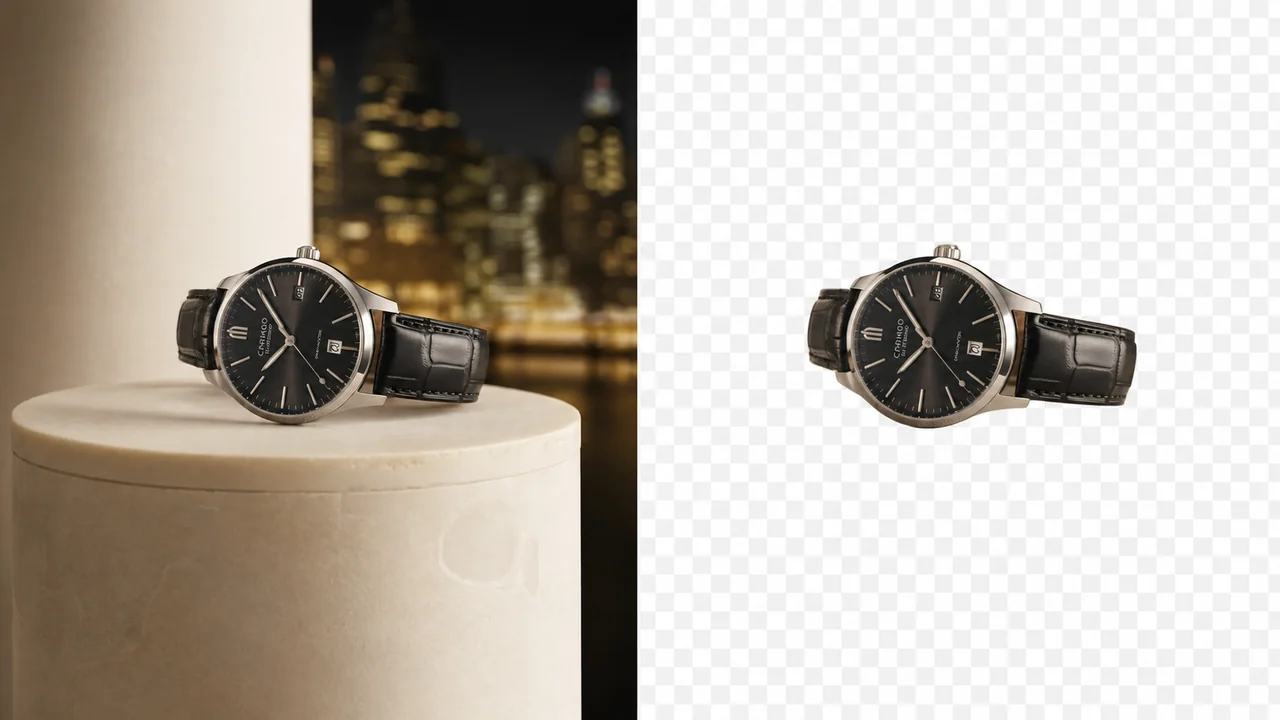
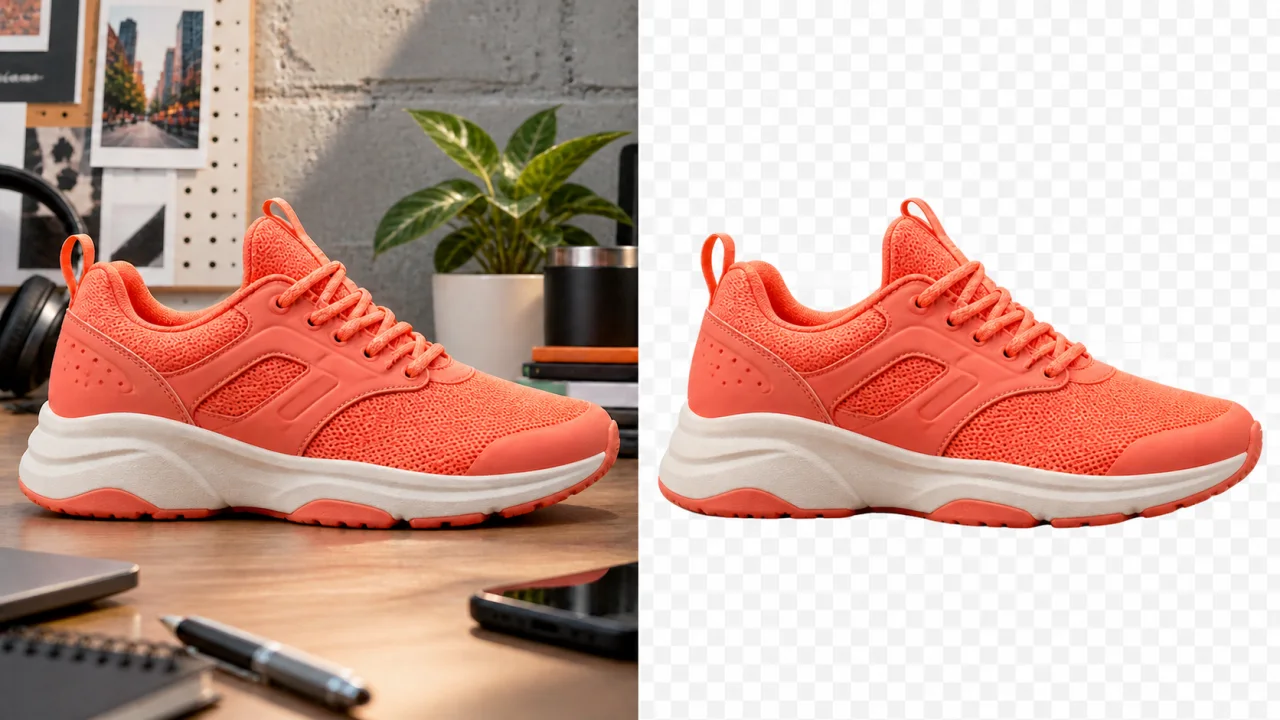
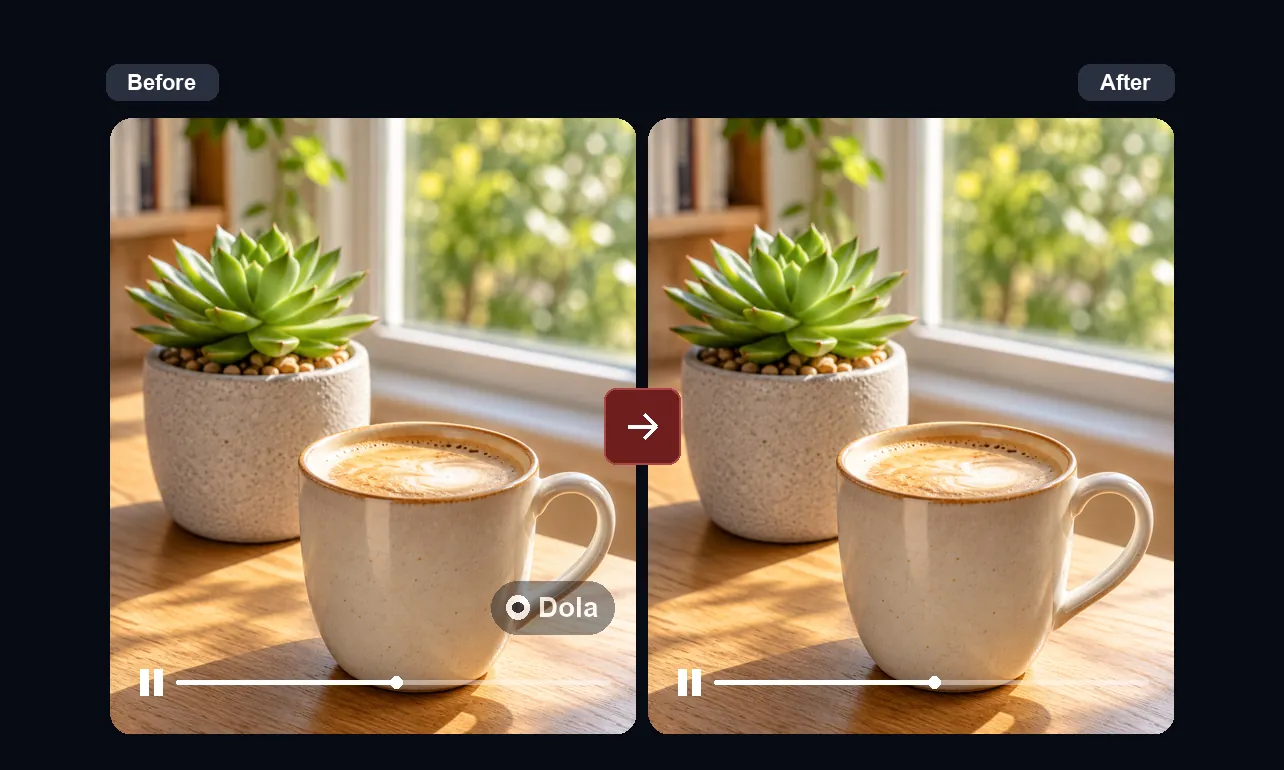
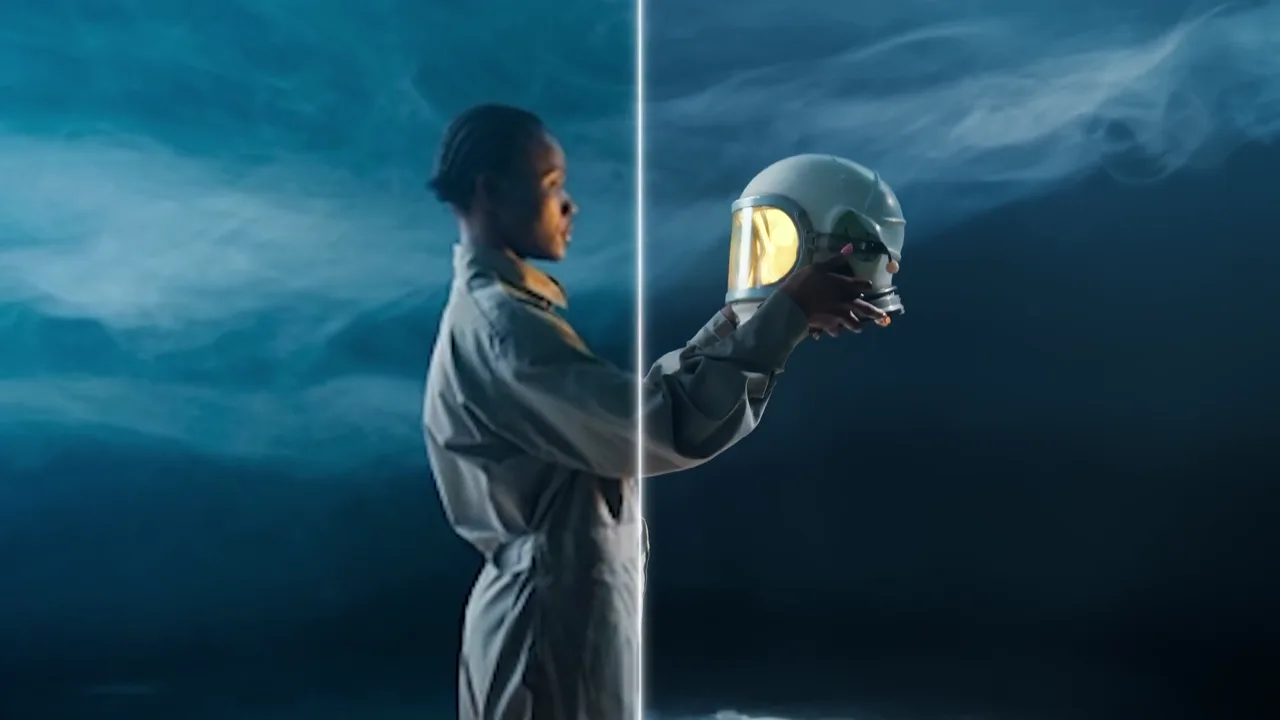
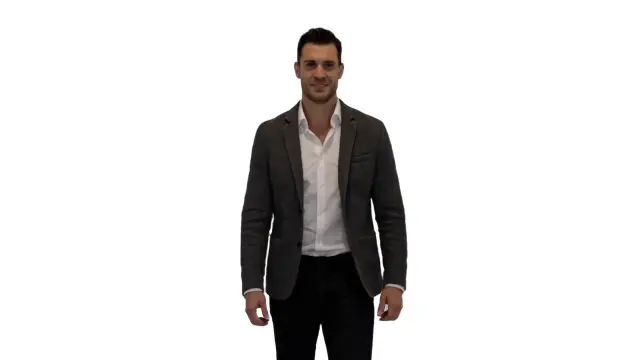
This front-end workspace is ready for the video background removal processing connection. Until that API is added, use the moving example above to see how original footage and a subject-separated result should be compared through real motion.
Step-by-step workflow
- Upload an MP4, MOV, MKV, or WebM source clip to prepare it for processing.
- Choose the target output you expect, such as transparent video or green screen.
- When processing is connected, compare hair, hands, reflections, and fast movement against the source.
- Export only after the subject stays natural throughout the full sequence.
Formats and limits
The front-end accepts MP4, MOV, MKV, and WebM selections. Processing limits, supported codecs, and downloadable output formats will be defined when the video background removal API is connected.
The current page does not send uploads or generate a processed video. It is an interaction-ready workspace and preview surface, not a simulated processor.
Privacy and permissions
No selected video is uploaded by the current front-end. Once processing is connected, upload handling and retention terms should be implemented and documented before production use.
Real-world review example
The moving demo uses a public Robust Video Matting example: the original dance footage appears beside the green-screen output, while the divider continuously moves to reveal both states over time.
Frequently asked questions
- Does this page process my uploaded video today?
- Not yet. The upload control prepares the front-end flow only; no video processing request is sent until the API integration is added.
- What will the comparison preview help me inspect?
- Use a before-and-after review to check subject edges, fast motion, reflections, transparency, and changes in lighting before downloading a final result.
